Account & Settings
7 articles
You can change your password directly in the Profile → Security section.
Simply enter your current password, set a new one, and save the changes.
At the moment, users cannot change their email address directly in the app.
However, our support team can update it manually for you upon request.
If you need to change your email, simply contact support — we’ll verify your identity and update it on our side.
You can switch between accounts from the top navigation bar.
- Click the account selector (e.g., “Demo Account”).
- Select the account you want to use.
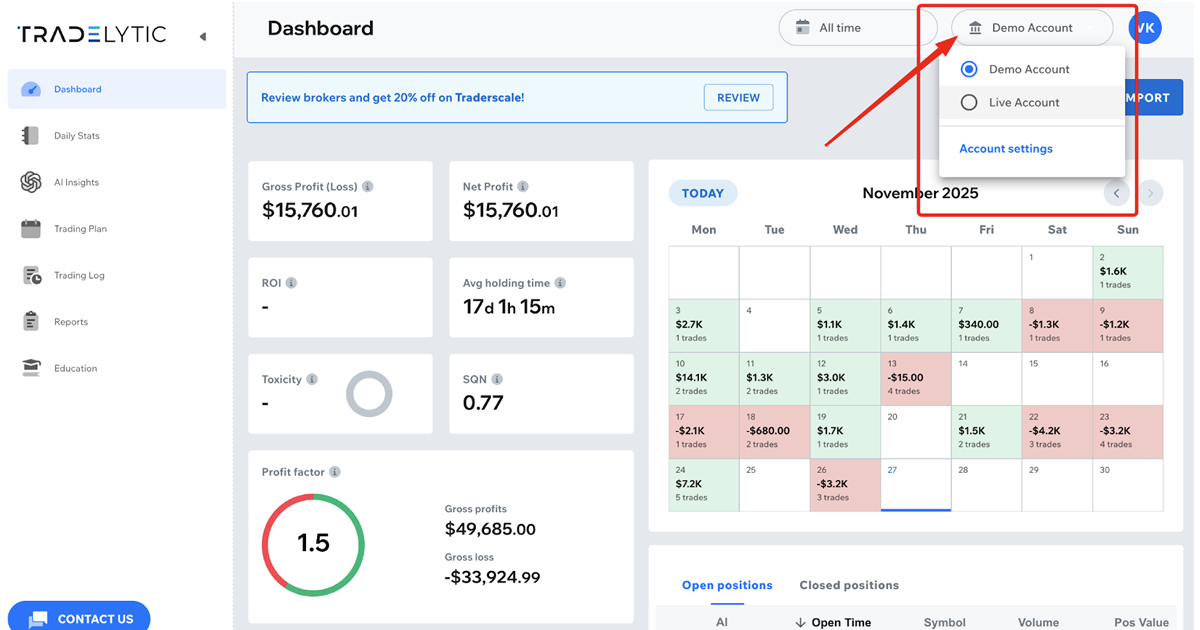
The dashboard, trading log, and reports will instantly update based on the selected account.
To add a new trading account:
- Open the Account selector in the top-right corner.
- Click Account settings.
- Go to the Accounts tab.
- Click Add Account (or the blue “+” button).
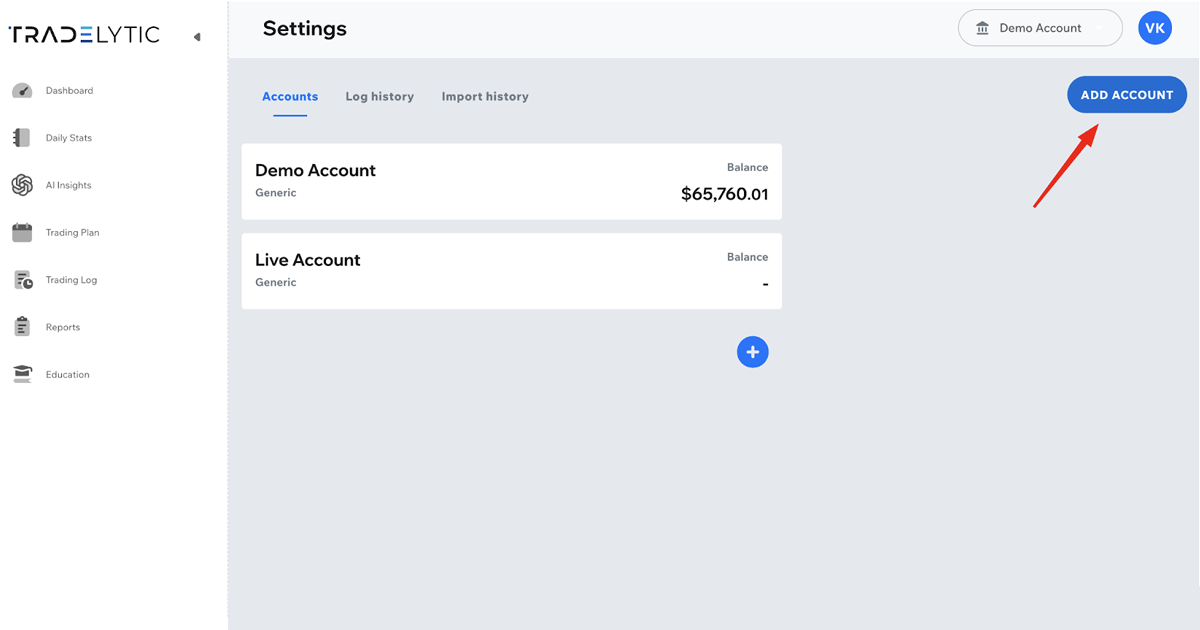
- Choose the account type (MT5, Generic, etc.) and complete the setup.
Your new account will appear in the account list and will be available for switching immediately.
Most connection issues happen for one of the following reasons:
- Incorrect MT5 / MT4 login or server name
- Password entered as Investor Password instead of the main trading password
- Your broker blocks third-party connections
- Firewall or VPS restrictions on your side
- Temporary connection timeout on the broker’s server
If the connection still fails, you can always use manual import
(MT4/MT5 reports or the .xlsx template) to track your trades.
At the moment, account deletion is handled manually through our support team.
If you want to delete your account, simply contact us and we will process the request for you.
Not yet — two-factor authentication (2FA) is currently not available in Tradelytic.
We do plan to add 2FA in a future update to further improve account security.
