
Trade Import
7 articles
How does auto-sync work?
Auto-sync keeps your connected MT5 trading accounts updated automatically without requiring any manual uploads.
When you connect an MT5 account, Tradelytic securely stores your login credentials and establishes a direct connection to the trading platform.
During each sync cycle, Tradelytic performs the following steps:
- Fetches your latest trade history
- Updates your Trading Log and all analytics (Dashboard, Reports, AI Insights)
- Saves a success or error status for internal logs
This ensures your performance data stays accurate and always up to date.
When does the daily synchronization happen?
A scheduled server process runs every night at 00:00 (server time).
During this process, all connected trading accounts are scanned and updated with the latest data.
This ensures that when you start a new day, your dashboard, reports, and statistics are fully refreshed and up to date.
How does the Sync button on the dashboard work?
The Sync button lets you manually refresh your trading data at any time.
When you press it:
- The last sync time is displayed on the button
- A loading state appears while data is being updated
- Your latest trades are fetched and all statistics are refreshed
This uses the same synchronization process as the automatic nightly update, but runs immediately. It’s useful when you want up-to-date data without waiting until the next scheduled sync.
Where can I see the last sync time?
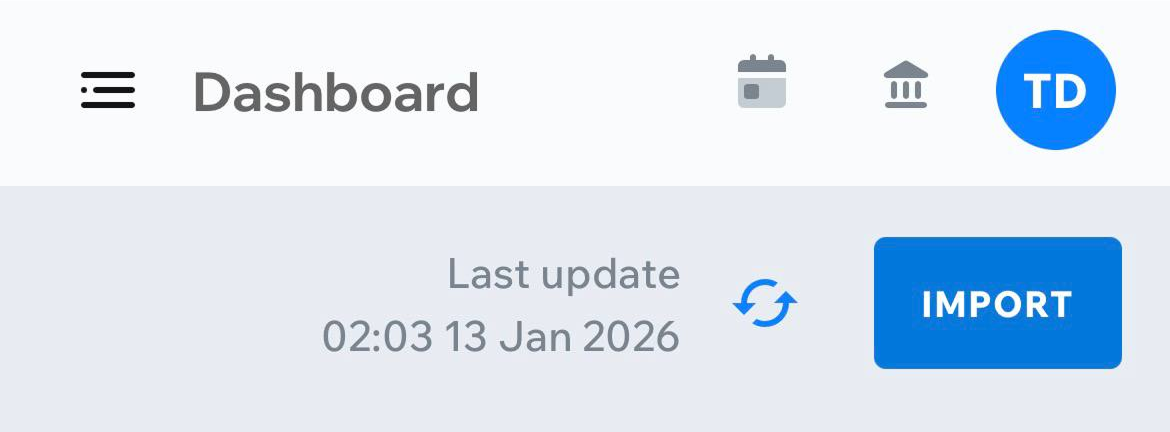
You can see the last synchronization time directly on the Dashboard.
The “Last update” text – located right before the Sync button – shows the time of the most recent successful synchronization.
This works the same way on both desktop and mobile.
Which file formats are supported for manual import?
Tradelytic supports the following file formats for manual trade import:
MT4 accounts
- .htm trade reports
- Tradelytic .xlsx import template
MT5 accounts
- .html trade reports
- Tradelytic .xlsx import template
Generic accounts
- Tradelytic .xlsx import template only
The official import template is available on the Import Trades page.
Why are my imported trades not showing up?
The most common reasons imported trades may not appear are:
- The uploaded file has incorrect formatting or missing required columns
- The wrong file type was uploaded (unsupported extension)
- The selected account does not match the file’s data
- The file failed validation on the backend
- The import template was modified incorrectly (removed columns or invalid values)
If the file is valid, your trades will appear instantly in:
- Daily Stats
- Trading Log
- Reports
What should I do if the file is too large or in an invalid format?
If the uploaded file exceeds the 30 MB limit or has an unsupported format:
- Export a shorter date range from MT4 or MT5
- Use the official Tradelytic .xlsx template instead
- Ensure the file contains only allowed fields and correct formatting
- Re-upload the file via the Import Trades page
If issues persist, uploading trades using the .xlsx template is the most reliable method.
No results found.